

Introduction
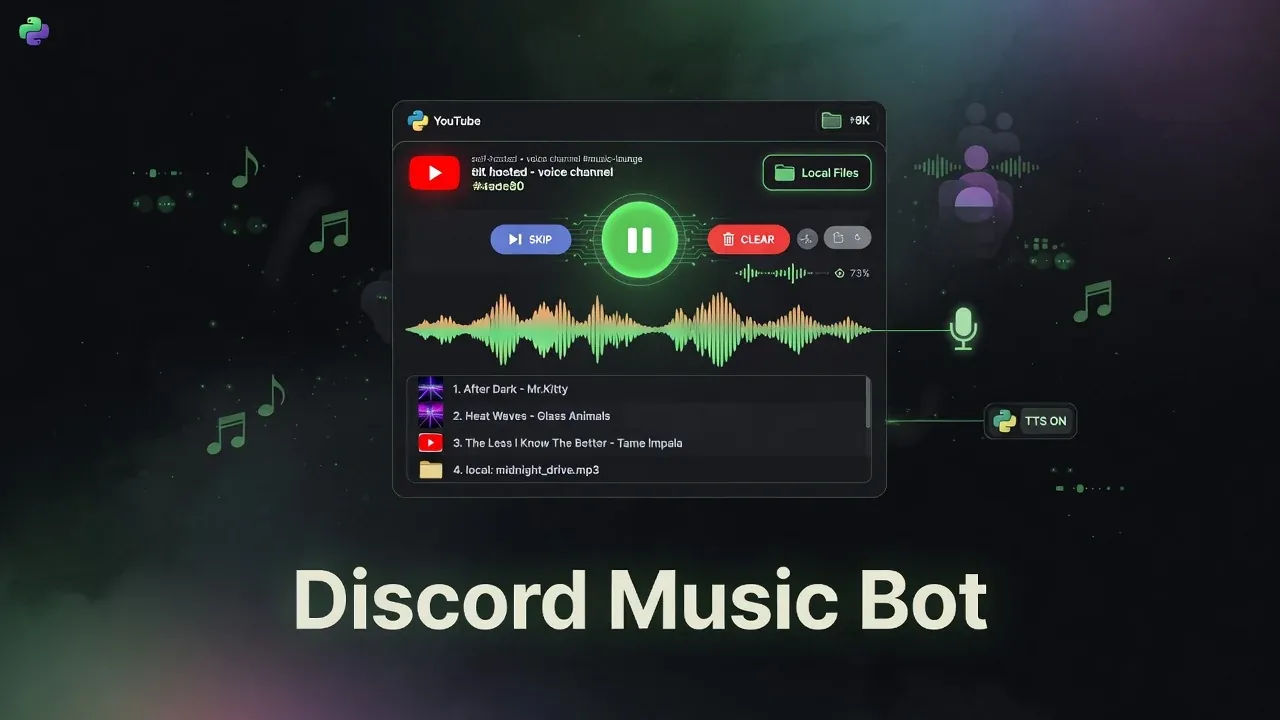
The Discord Music Bot is a lightweight, self-hosted Python application that brings music playback directly into your Discord server. It supports both YouTube (videos and playlists) and local audio files, with an intuitive interactive control panel, queue management, text-to-speech, and convenient download/upload features.
Built with discord.py[3], yt-dlp[4], and gTTS[5], it offers a clean slash-command experience and runs on any machine with Python 3 and FFmpeg[6] installed. A pre-built Windows .exe is available in the releases for those who prefer not to manage a Python environment.
Repository: github.com/Ranzlappen/discord-musicbot
Key Features
- YouTube & Local Playback — Stream YouTube videos or playlists via URL, or play from a local
music/folder. - Interactive Control Panel — A persistent embed with colour-coded buttons: play/pause (green), skip (blue), queue view (blue), autoplay toggle (blue/grey), volume ±5%, and more.
- Queue Management — Configurable max queue size (default 100), per-track skip, full queue clear, and paginated queue browser.
- Autoplay — Per-server autoplay that randomly picks local files when the queue runs empty.
- Text-to-Speech (TTS) — Speak any text in the voice channel with 30+ language options. Music fades out, TTS plays, then music resumes at the same position.
- Song Download & Upload — Download the currently playing song or any track from the queue/local library directly into Discord.
- Admin Tools —
/__clear_channel__purges all messages in the current channel (requiresManage Messagespermission).
How It Works
The bot authenticates with Discord using a bot token via discord.py’s slash-command framework[3]. When a user runs /play <youtube-url>, the bot calls yt-dlp[4] with format: bestaudio/best to extract a direct audio stream URL, then passes that URL to FFmpeg[6] for real-time audio processing and playback into the Discord voice channel.
For playlists, yt-dlp first runs a flat extraction (extract_flat: True) to enumerate playlist entries, then streams them one by one from the queue.
For local files, the music/ directory is enumerated at startup. /local lists available files; /autoplay toggles random local playback when the YouTube queue is empty.
TTS works via gTTS[5] (Google Text-to-Speech, v2.5.4 as of late 2024): the bot generates an mp3 file from the text, fades out the current track, plays the speech file through FFmpeg, then restores music.
The control panel embed is sent by /controls as a persistent Discord message with interactive buttons. The view has timeout=None (no expiry) — buttons work indefinitely until the bot restarts. Paginated file selectors use a timeout=120 seconds.
Architecture & Tech Stack
| Component | Library / Tool | Role |
|---|---|---|
| Discord API | discord.py v2[3] | Slash commands, voice, embeds, buttons |
| Audio extraction | yt-dlp[4] | YouTube stream URL extraction |
| Audio processing | FFmpeg[6] | Decode, transcode, stream to Discord |
| Text-to-speech | gTTS 2.5.4[5] | Convert text to mp3 via Google TTS API |
| Configuration | config.json |
Token, queue size, TTS defaults |
| Local library | music/ folder |
MP3 files for local playback & autoplay |
FFmpeg options used at runtime:
# YouTube streaming
before_options: ‘-reconnect 1 -reconnect_streamed 1 -reconnect_delay_max 5 -nostdin’
options: ‘-vn’

# Local file playback
before_options: ‘-nostdin’
options: ‘-vn’
The -reconnect flags handle transient network hiccups during long streams without the bot falling silent. -vn strips video so only the audio stream is processed.
File structure expected on disk:
your-folder/
├── discordmusicbot.py   # Bot entry point
├── config.json          # Configuration (see below)
└── music/               # Local MP3 library
    ├── song1.mp3
    └── ...
Command Reference
| Command | Description | Notes |
|---|---|---|
/play <url> |
Stream a YouTube video or playlist | Supports full playlist URLs |
/local |
List all local MP3 files | Paginated selector |
/skip |
Skip the current track | Also available via control panel |
/pause |
Pause playback | |
/resume |
Resume paused playback | |
/join |
Bot joins your voice channel | Optional: clears queue on join |
/clearqueue |
Clear the entire song queue | |
/autoplay |
Toggle per-server autoplay from local library | Does not affect other servers |
/download |
Download current song or choose from queue/library | Respects upload cooldown |
/tts <text> |
Text-to-speech in the voice channel | Max 500 chars; 30+ language options |
/controls |
Show the interactive control panel embed | Buttons are persistent |
/__clear_channel__ |
Delete all messages in the channel | Requires Manage Messages |
Configuration
All settings live in config.json in the same directory as discordmusicbot.py. The full default structure[1]:
{
  "BOT_TOKEN": "YOUR BOT TOKEN",
  "EMBED_TITLE": "Music Controls",
  "EMBED_DESCRIPTION": "Use the buttons below to control music.",
  "EMBED_IMAGE_URL": "https://fonts.gstatic.com/s/e/notoemoji/latest/1f916/512.webp",
  "COOLDOWN_PER_UPLOAD_IN_SECONDS": 10,
  "MAX_SONG_QUEUE": 100,
  "MESSAGE_CLUTTER_REMOVAL_DELAY": 5,
  "DEFAULT_TTS_LANGUAGE": "en"
}
| Field | Default | Description |
|---|---|---|
BOT_TOKEN |
— | Your Discord bot token from the Developer Portal |
EMBED_TITLE |
"Music Controls" |
Heading of the control panel embed |
EMBED_DESCRIPTION |
"Use the buttons…" |
Subtext in the control panel embed |
EMBED_IMAGE_URL |
robot emoji WebP | Thumbnail shown in the control embed |
COOLDOWN_PER_UPLOAD_IN_SECONDS |
10 |
Rate-limit on song downloads per user |
MAX_SONG_QUEUE |
100 |
Maximum tracks allowed in the queue |
MESSAGE_CLUTTER_REMOVAL_DELAY |
5 |
Seconds before ephemeral status messages are auto-deleted |
DEFAULT_TTS_LANGUAGE |
"en" |
Default language for /tts (BCP 47 code) |
Getting Started
- Install FFmpeg and add it to your system PATH (required for audio processing).
-
Install Python dependencies:
pip install -U discord.py yt-dlp gTTS - Create a Discord Application at the Discord Developer Portal, generate a bot token, and enable the Message Content and Server Members intents.
- Edit
config.json— paste your token intoBOT_TOKEN. AdjustMAX_SONG_QUEUE,DEFAULT_TTS_LANGUAGE, etc. as needed. - Invite the bot to your server with these permissions: Connect, Speak, Send Messages, Embed Links, Attach Files, Use Slash Commands, Manage Messages (for
/__clear_channel__). -
Run the bot:
python discordmusicbot.py
The bot goes online and registers slash commands. Use /controls in any text channel to post the persistent control panel embed.
Windows shortcut: A pre-built .exe is available in the releases — download, place config.json and your music/ folder alongside it, and double-click to run without needing Python installed.
Troubleshooting & Pitfalls
Bot joins the voice channel but no audio plays
FFmpeg must be on your system PATH. Run ffmpeg -version in a terminal to verify. If the command is not found, install FFmpeg and add its bin/ directory to PATH.
YouTube playback stops mid-stream with no error
The -reconnect FFmpeg flags handle most network blips, but very long streams or throttled connections can still drop. Use /skip and re-queue the track if this happens.
Heavy YouTube usage warning
The README explicitly notes that heavy YouTube usage may trigger rate limiting or temporary account flags on the IP running the bot. Self-hosting on a residential connection is usually fine for personal/small-server use.
Buttons no longer respond after a bot restart
The control panel embed is re-registered at runtime. After restarting the bot, run /controls again to post a fresh embed with live button listeners.
TTS message is cut off
/tts has a hard 500-character limit. Split long texts into multiple commands.
Autoplay does not trigger
Autoplay requires at least one MP3 file in the music/ folder and must be toggled on per-server via /autoplay.
Security Notes
- Never commit
config.jsonto a public repository. TheBOT_TOKENfield is a secret credential. The README includes this warning explicitly[1]. Addconfig.jsonto your.gitignorebefore making any fork public. - The bot uses
/__clear_channel__(double underscore) as a deliberate naming convention to make it harder to trigger accidentally; it also requires theManage MessagesDiscord permission. - The bot operates with minimal permissions — only what is listed in the invite URL. Do not grant
Administratorunless you have a specific reason. - The download feature streams file uploads into Discord and is rate-limited by
COOLDOWN_PER_UPLOAD_IN_SECONDSto prevent abuse.
Key Takeaways
- A lightweight, self-hosted Discord music bot written in Python that supports both YouTube and local MP3 files.
- Features an interactive button control panel with persistent embeds — no need to remember command names for day-to-day use.
- Includes per-server autoplay, TTS with music-pause, paginated queue browser, and easy song downloading.
- Simple one-file setup with
config.json— easy to run locally, on a server, or via the Windows.exerelease. - Fully open-source (MIT) with a straightforward architecture built on
discord.py[3],yt-dlp[4],gTTS[5], and FFmpeg[6].
Conclusion
The Discord Music Bot is a practical, no-nonsense solution for adding music to your Discord server without relying on third-party hosted bots. Its combination of YouTube and local file support, interactive controls, TTS integration, and easy self-hosting makes it a great choice for personal use or small communities. Full ownership of the bot means no surprise shutdowns, no premium tiers, and complete control over what it can do.
More project showcases: Ticked · MoodRadar · Flipper Zero Framework · Synth Piano · repo-standards · tools.ranzlappen.com
Sources
- Ranzlappen/discord-musicbot — GitHub repository (README, config.json, source code).
- discord-musicbot releases — pre-release v1 (includes Windows .exe).
- discord.py v2.7.1 documentation — Python Discord API wrapper.
- yt-dlp — feature-rich YouTube/audio downloader (fork of youtube-dl).
- gTTS 2.5.4 — Google Text-to-Speech Python library (PyPI).
- FFmpeg documentation — audio/video processing used for Discord voice streaming.
- Discord Developer Documentation — Bot permissions reference.
Comments
Comments are powered by Giscus (GitHub Discussions).
Enable functional cookies to load comments.